Montage maker
How to use montage maker
How to use montage maker
1. Add new file
Click +Create Video to start. Select the video dimension depending on your need. You can also use your existing file to create the video.
2. Add images
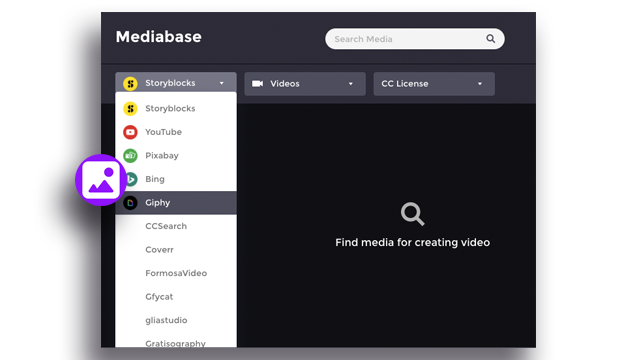
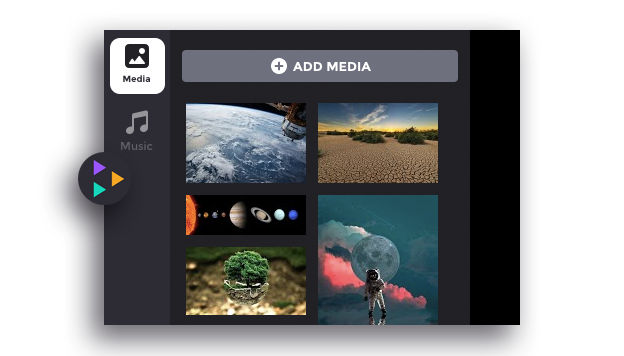
Click +Add to add images on your clipboard. You can upload your media by click Upload, leverage the images provide by Gliastudio on Mediabase and/or retrieve directly from any sites using the URL link on the Source URL.
3. Edit clips
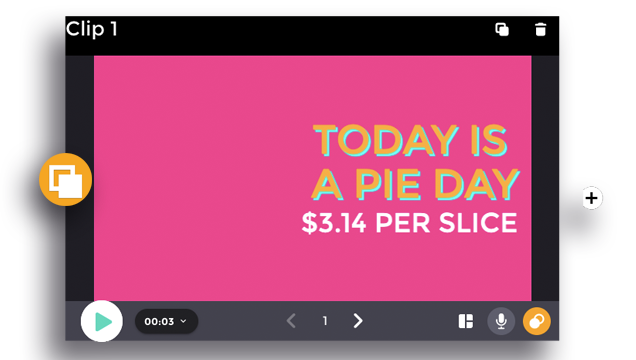
Create a new clipboard. To insert the images, drag the desired media to the clipboard. You can adjust the filter, transition effect, text, and music background to enhance your video creation. Click Preview & Produce before proceed to download the creation.